Vous venez d'acquérir une licence Wiclax et vous voulez activez le logiciel. Cette petite vidéo vous montre comment faire. Avant tout, il faut télécharger la version d'évaluation sur ce site et l'installer sur votre ordinateur pour pouvoir l'activer et la rendre pleinement fonctionnelle.
Pensez également à vous munir de votre identifiant de compte sur genialp.com et de votre ID de commande qui est visible depuis votre compte et que vous avez du recevoir par mail.
Si vous avez le moindre problème, n'hésitez pas à nous contacter.
In 2016, we can't think of timing an event in a manual way. So we have to make our favorite hardware talk to Wiclax. This is possible in a very simple way. Wiclax can interface with many systems on the market and the list is not closed.
Below is a quick video to show you how it can be done. It does not show all the possibilities as your timing configuration can be much more complex, with multiple readers/decoders or loops that can be either local or distant, and with multiple passings on some of them, etc... But it does make a short introduction.
Classic race week-end: you're having to deal with multiple races spread across Saturday and Sunday. Each of them holds its own bib number range, but eventually you discover lately that the organizer made two of them overlap.
You want to avoid any perturbation in a simple way. For example some runners hanging around your mats/antennas with their bib for next day's race. Or other kinds of interference like clothing chips holding a plausible id (note: this is a good reason among others that makes filtering also useful in a single race configuration).
At the same time you want to make your chips encoding as easy as possible. Though the software can deal with chip-bib correspondence tables, it's always a waste of time to feed them and a non-necessary source of errors.
Here's what you'll use: chip filters in the software and a prefixing of your chip ids at encoding.
Chip encoding policy
Your chip ids will be made of 2 parts:
a unique number identifying the race - for example 0147. This number will be simply incremented after each race
the actual bib number
Giving for example this chip id for bib #4356: 01470004356
Chip filters in Wiclax
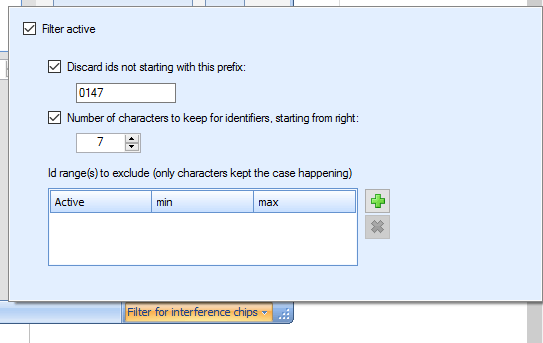
Open the acquisitions form, and look for the interference filter panel in the status bar:
Check the Filter active option. Enter the prefix that will identify the only chips you want to see read, and the number of trailing digits that will compose the actual bib number. In our sample case: 0147 is the prefix and 7 is the number of digits to care about.
Close the panel. The status bar now indicates that there's a filter active:
And that's it!
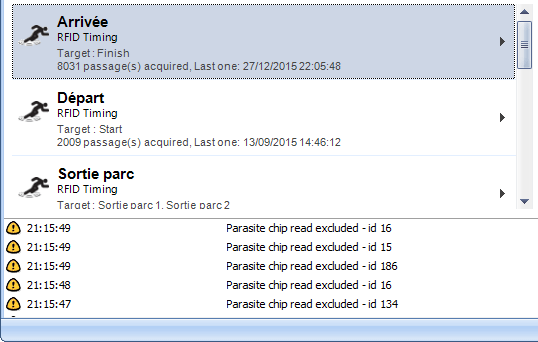
In case you're in doubt after that, seeing a chip discarded and wondering why, remember you can check the acquisition log. All filtered readings land there:
New in version 8 is the ability to open a network service that makes your participant data editable from a remote station/device.
This can be a great help for example if you want to dedicate a member of your team for a participant registration follow up, while you can strictly focus on timing the current race.
How to make it work
Almost nothing to do for that: the service is opened by default when Wiclax gets launched and as soon as an event is active, the participant data can be edited remotely.
Simply find the Network button in the Registrations tab, and you'll get the address of the service in the dropdown menu. Type this address in the browser of a tablet connected to your local network and here you go.
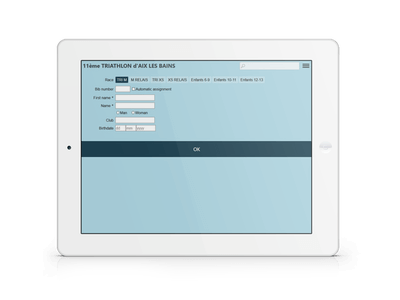
You're getting this kind of screen, showing the name of the active event and a minimal registration form:
What can you do with the service?
The application can do the following:
Lookup some existing participant data: either typing a bib number or part of a name
Modify the data for a registered participant
Register a new participant, providing his/her bib number (an alert will tell if it's already allocated)
Register a new participant, letting Wiclax allocate him/her an available bib number. This number will be determined by the races' bib ranges if any, and will be displayed right after the validation.
Display the history of the registrations made on the device, for an easy go-back when necessary.
On Wiclax side, a greenmark icon appears on a participant row when he's been added remotely. The mark disappears at the next file saving. Remember that only this file saving operation makes the remote modifications definitely saved.
Note: to simplify, only one single service is active at a given time on your PC. So in case you're working with multiple instances of Wiclax, remember that the last one that was alone when launched owns the service. Having a doubt or wishing to switch for another event: check the Network menu. It will propose to hijack the active event in case it's not the current one.
Après des années de bons et loyaux services, Clascycle tire sa révérence et cède la place à Wiclax. Une solution toujours plus innovante et en phase avec vos besoins.